


pdfFiller Edit, fill, sign PDF
3.93.75K Reviews
App Specs
- Version
- 10.53.22790
- Updated On
- License
- Free
- Downloads
- 5,000,000+
- Developer
- airSlate, Inc.
- Categories
- Productivity
- Platform
- Android, iOS
Screenshots
 Analysis by AppCompare
I reach for a mobile PDF editor when a document needs more than a quick glance: a form to complete, a correction to make, or a signature to add before I can get back to my day. pdfFiller Edit, fill, sign PDF is built around that practical workflow, bringing editing, form filling, signing, and sharing together. That convenience is useful, but it also means the app may handle documents containing personal details. I’d treat trust as part of the decision, not as an afterthought.
A practical PDF workspace, with sensible caution
Developed by airSlate, Inc., pdfFiller is a productivity app with a 3.9 average from around 26,000 ratings and more than five million installs. It is free to download, rated for Everyone, and has optional in-app purchases ranging from $5.99 to $179.99 per item. That range makes it worth checking what a particular task requires before relying on a paid capability; I wouldn’t assume every useful workflow is included at no cost.
I like the idea of keeping routine PDF jobs in one place, especially when I’m away from a computer. Still, I would not treat a convenient interface as proof of how a document is stored, processed, or protected. Before putting sensitive material into any editor, I make a habit of checking the permissions requested, the app’s privacy information, and the choices presented during sign-in or sharing. Those are the places where a user can make an informed decision rather than relying on a general sense of reassurance.
What I would check before adding a document
PDFs can contain far more than the visible text on a page: addresses, account details, signatures, or information in form fields. My first step with a sensitive file would be to confirm I have the right document and that I’m comfortable using a mobile editing service for it. I’d also review the app’s current permission prompts and account controls on my own device, since those are the concrete choices that matter to me. I wouldn’t grant access simply because a file operation seems to call for it; I’d consider whether selecting an individual file is enough for the task.
For ordinary paperwork, this kind of all-in-one tool can save time. For a document involving confidential work, financial records, medical details, or someone else’s personal information, I’d slow down and check the relevant privacy and sharing settings before uploading or sending anything. Password protection can add a layer of control to a document, but it is not a substitute for choosing the right recipient or reviewing where the file is going. I’d double-check the destination and the final copy before tapping send.
Keeping control during a PDF workflow
A useful habit is to work on a duplicate when the original matters. I’d keep an untouched copy, make the changes in a separate version, then inspect the finished PDF page by page. That catches common mobile-editing mistakes such as a field being placed over nearby text, a signature sitting in the wrong box, or a change that looks fine while editing but not in the exported document. It also gives me a simple fallback if I need to start again.
Sharing deserves the same care as editing. Before sending a completed form, I’d read the recipient address, check whether the file includes only the pages intended, and consider whether a password is appropriate for the circumstances. If I’m using a cloud service, I’d make sure I understand which account I’m saving to and whether that is the account I meant to use. These small checks are especially helpful when switching between personal and work documents on one phone.
Worth Reading Before You Choose

EA SPORTS FC Mobile 26 Is a Bigger Football Game, but It Takes Time

Flipboard Shows What News Apps Must Do Beyond the Feed

Switching to Android Auto Means Rethinking Your Driving Routine

Google Calendar Makes a Crowded Week Easier to Manage

Ludo King Makes the Most of the Minutes Between Plans

Baby Panda World Brings Quick Play to Modern Phones, but Its Game Library Feels Busy
Account choices matter too. If the app asks me to sign in, I’d look at what options it presents and choose only what I’m comfortable with. I’d also revisit account settings when I no longer need a document workflow, rather than assuming that deleting a local copy changes anything associated with an account or a shared file. I can’t infer a service’s data practices from an editing feature, so I’d use its privacy details and controls to guide that decision.
Using pdfFiller for everyday document work
I use this section to look at where the app fits into a typical document task, from making a quick correction to deciding whether a mobile workflow is appropriate for a file. I’ll focus on the practical trade-offs that matter before moving on to how I’d get started and check the finished document.
Getting Started with pdfFiller
First things first, downloading pdfFiller Edit, fill, sign PDF was a breeze. It’s available on both Android and iOS, and I had it up and running in no time. The user interface is clean and pretty intuitive, which is a huge plus. It feels like the app holds your hand through the process without being too overbearing.
The current version is 10.50.22778, and the Android minimum operating system is 6.0. That makes it relevant to a broad range of Android devices, though the experience of editing a long or complex PDF will naturally depend on the screen and the document itself. I find a phone perfectly reasonable for short forms and quick corrections; for careful layout work across many pages, a larger screen is easier to inspect.
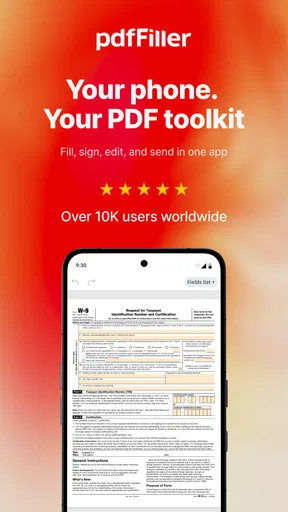
A realistic use case is a school permission form or a routine work document arriving while I’m away from my desk. I can open it, complete the fields, add a signature, and prepare it for sharing without first finding a printer. The benefit is less about replacing every desktop tool and more about closing a small but time-sensitive task while I already have the document in hand.
Editing PDFs Like a Pro
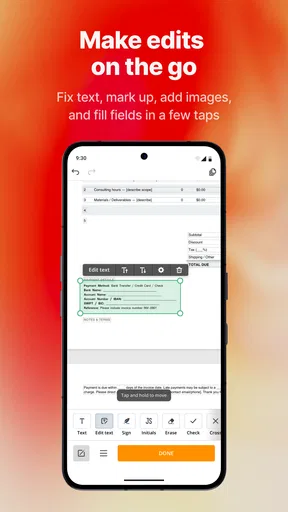
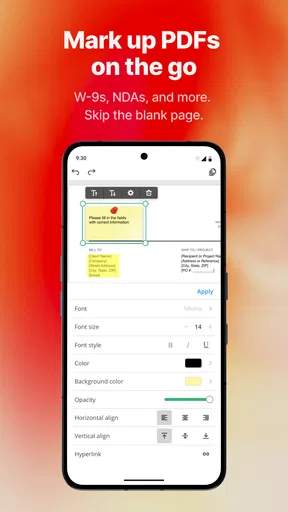
One of the coolest features I found was the editing capability. You can literally edit anything in a PDF—text, images, you name it. It’s as simple as selecting the area you want to tweak and diving right in. The app offers a range of editing tools that make the process feel seamless, from adding notes to inserting new text.
The editing function is robust, and there’s a certain satisfaction in watching your changes come to life in real-time. It's like magic! And for someone like me who often needs to make last-minute tweaks, this feature is a lifesaver.
There is an important trade-off here: changing text in an existing PDF is not always the same as editing a document in the software that created it. A page with unusual fonts, tightly arranged columns, or layered elements can be harder to adjust neatly on a small screen. I’d use the editor for a clear correction or annotation, then zoom in and compare the revised page with the original. If exact typography and layout are essential, going back to the source file or using a desktop PDF editor is the safer choice.
For a practical workflow, I’d make one change at a time and review the surrounding lines after each edit. That is more reliable than making several quick adjustments and only checking the page at the end. When a document is being sent to someone else, I’d also open the completed version again after saving; the recipient sees the file, not the editing screen.
Filling Forms Made Easy
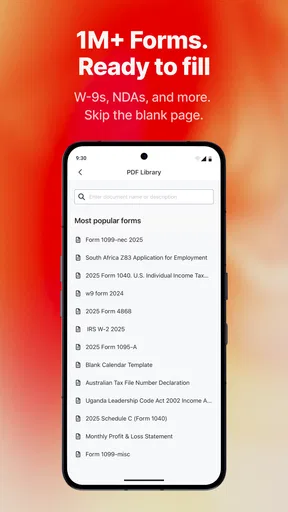
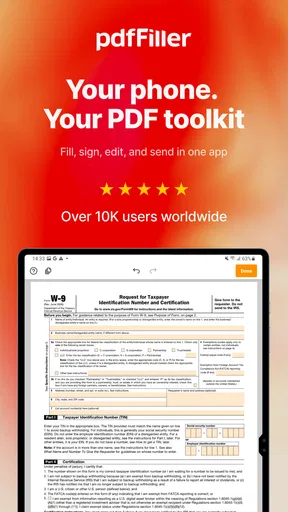
Have you ever had to fill out a PDF form and found yourself wishing you had a printer? Yeah, me too. But with pdfFiller, filling forms is as easy as pie. You can tap into fields and type away. The app automatically detects fillable fields, which is a neat touch.
You can even save your frequently used information, so you’re not typing out your address for the millionth time. This feature is a huge time-saver, especially if you're dealing with similar forms regularly.
Automatic field detection is most helpful when a PDF was designed as a form. Some documents only look like forms because they contain blank lines or boxes in a flat page image. In that case, I’d check that each entry lands in the intended place and use the app’s editing tools if I need to position text manually. I would not assume that every blank space is a tappable field.
Saved personal details can reduce repetitive typing, but convenience and privacy pull in different directions. I’d save only information I’m comfortable reusing on the device and account, and I’d still proofread each completed form. Reused details can be outdated, or simply wrong for a particular application. Before submitting, I check names, dates, and any field that could vary from one form to another.
This makes the app a good fit for people who regularly handle straightforward forms, such as students, freelancers, or anyone dealing with routine household paperwork. If a form requires extensive calculations, special validation, or a very precise layout, I’d prefer a dedicated desktop workflow or the organization’s own form system. The phone is convenient, but it does not make every document easy to complete.
Signing PDFs on the Go
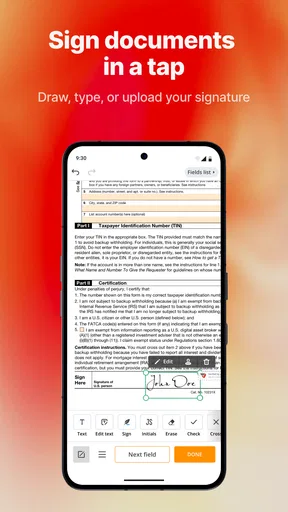
Now, let’s talk signatures. Gone are the days of printing, signing, and scanning documents. With pdfFiller, you can sign documents directly on your phone or tablet. You can either draw your signature using your finger or upload a scanned version. The app even lets you save multiple signatures, which is super handy if you need to switch between a professional and personal signature.
Signing documents has never been this straightforward, and honestly, it feels quite empowering to have such control at your fingertips.
I’d take a moment to inspect the signature after placing it. A finger-drawn mark can be less tidy than one made with a stylus, and it is easy to drop it into the wrong area when the page is zoomed out. I’d zoom in, align it with the intended signature line, and then review the whole page before sharing. If I keep more than one signature available, I’d be deliberate about choosing the right one for that document rather than treating saved signatures as interchangeable decoration.
For a routine form that accepts an electronic signature, this is a useful alternative to printing and scanning. But whether an electronic signature is suitable depends on the document and the organization receiving it. For a contract or official process with specific signing requirements, I’d check those requirements first instead of assuming a signature placed in a PDF will satisfy them.
Sharing and Storing Your PDFs
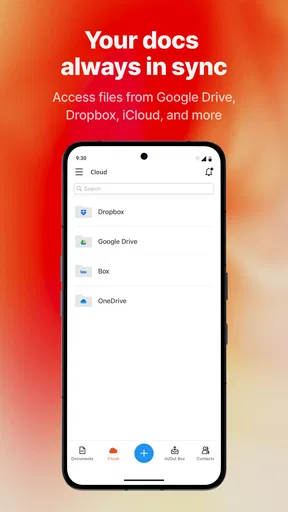
Once your document is ready, sharing it is just a tap away. You can send it via email, text, or even upload it to your favorite cloud storage service. The app supports integrations with Dropbox, Google Drive, and others, making it easy to keep everything organized.
For those who are wary about security, pdfFiller also offers password protection for your documents. It’s a solid feature that gives you peace of mind, knowing your sensitive information is safe.
I’d describe password protection as a helpful safeguard, not a blanket guarantee. A strong, separately communicated password is more useful than one sent in the same message as the file, and the recipient still needs to know how to open the document. If a document is not sensitive, that extra step may create needless friction; if it is sensitive, it is worth considering alongside the destination, the sharing method, and the recipient’s access.
Compared with the usual alternatives, pdfFiller’s appeal is having edits, form entry, signing, and sharing in one mobile-oriented workflow. A basic PDF reader is simpler when I only need to view or mark up a page, and a desktop editor is often more comfortable for detailed layout work. Printing and scanning still make sense when a recipient specifically requires a paper original. I see this app as a practical middle ground for documents that need a few actions, rather than a replacement for every PDF tool.
The app is free to install, but its in-app purchases make it sensible to check the cost of a workflow before depending on it repeatedly. Someone who edits PDFs only once in a while may be better served by tools already available on their device or by a free, limited-purpose option. Someone who often has to complete, sign, and send documents from a phone may find the combined workflow worth exploring, provided the relevant purchase terms suit their needs.
Who will get the most from it
I’d recommend trying it if your PDFs are mostly practical documents: forms to fill out, a short passage to correct, a signature to add, or a finished file to send while you’re away from a computer. It is particularly convenient when those steps happen together, because you avoid bouncing between a reader, a separate signing tool, and email. The app’s broad age rating also means it is not presented as restricted to adults, though the judgment about sharing personal information should still be made by the person using it or a responsible adult.
I’d skip it as my main tool if I rarely work with PDFs, need precise page design, or handle files under strict organizational rules that require a particular approved system. I’d also be cautious about putting highly sensitive documents into any app until I had reviewed its privacy information, permission requests, account choices, and sharing path. For simple, low-risk paperwork, convenience may win; for confidential records, the decision deserves more care.
Final Thoughts
All in all, pdfFiller Edit, fill, sign PDF has been a game-changer for me. Whether you’re a student, a professional, or just someone who deals with PDFs regularly, this app caters to all your needs. It’s convenient, efficient, and just makes life a whole lot easier.
So, if you’re tired of the usual PDF struggles, give pdfFiller a try. It might just become your new favorite app. Plus, who doesn’t love an app that makes you feel like a productivity powerhouse?
My more cautious recommendation is to start with a non-sensitive document and see whether the editing and form workflow suits the way you work. Then review the finished file, understand any purchase prompt before committing, and make deliberate choices about accounts and sharing. If those checks feel comfortable and your needs are routine mobile PDF tasks, it can be a handy companion; if they do not, a simpler reader or a trusted desktop option may be the better fit.
Pros
- User-friendly interface for easy navigation.
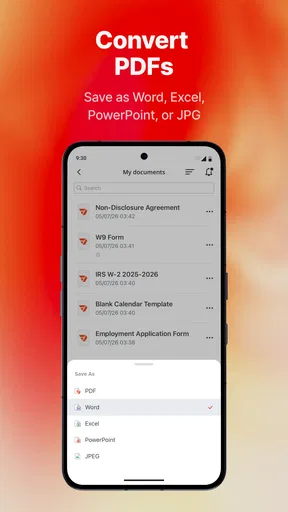
- Supports multiple file formats for conversion.
- Secure cloud storage for document safety.
- Real-time collaboration with team members.
- Integration with popular apps like Google Drive.
Cons
- Limited features in the free version.
- Occasional lag with large files.
- Requires internet for cloud features.
- Subscription can be pricey for some users.
- Mobile app lacks some desktop features.
FAQs for pdfFiller Edit, fill, sign PDF
What is pdfFiller and what can it do?
pdfFiller is a versatile application designed to edit, fill, sign, and share PDF documents. It allows users to easily modify PDF files, add text, images, and signatures, and collaborate by sharing documents with others. Ideal for personal and professional use, it streamlines document management on both Android and iOS devices.
Is pdfFiller free to use, or are there subscription fees?
pdfFiller offers a free version with basic functionalities, but to access its full range of features, including advanced editing and collaboration tools, you may need to subscribe to a paid plan. Subscription fees vary depending on the plan and region, providing options for monthly or annual payments.
Does pdfFiller require an internet connection to function?
While pdfFiller requires an internet connection for certain features, such as saving documents to the cloud or sharing files, many editing functions are available offline. Users can edit and fill documents without connectivity, ensuring productivity even in areas with limited internet access.
How secure is my data with pdfFiller?
pdfFiller takes data security seriously, utilizing encryption protocols to protect user information and documents. The app complies with industry-standard security practices to ensure confidentiality and privacy. Users can also enable additional security measures, like two-factor authentication, to enhance protection.
Can I integrate pdfFiller with other apps or services?
Yes, pdfFiller supports integration with various popular apps and services, such as Google Drive, Dropbox, and OneDrive. This allows seamless saving and sharing of documents across platforms, enhancing workflow efficiency. Users can easily import and export files to and from these services within the app.


